Quick start
When DeckCrate opens, it starts in your home folder. Here’s the lay of the land and how to get moving.
The interface at a glance
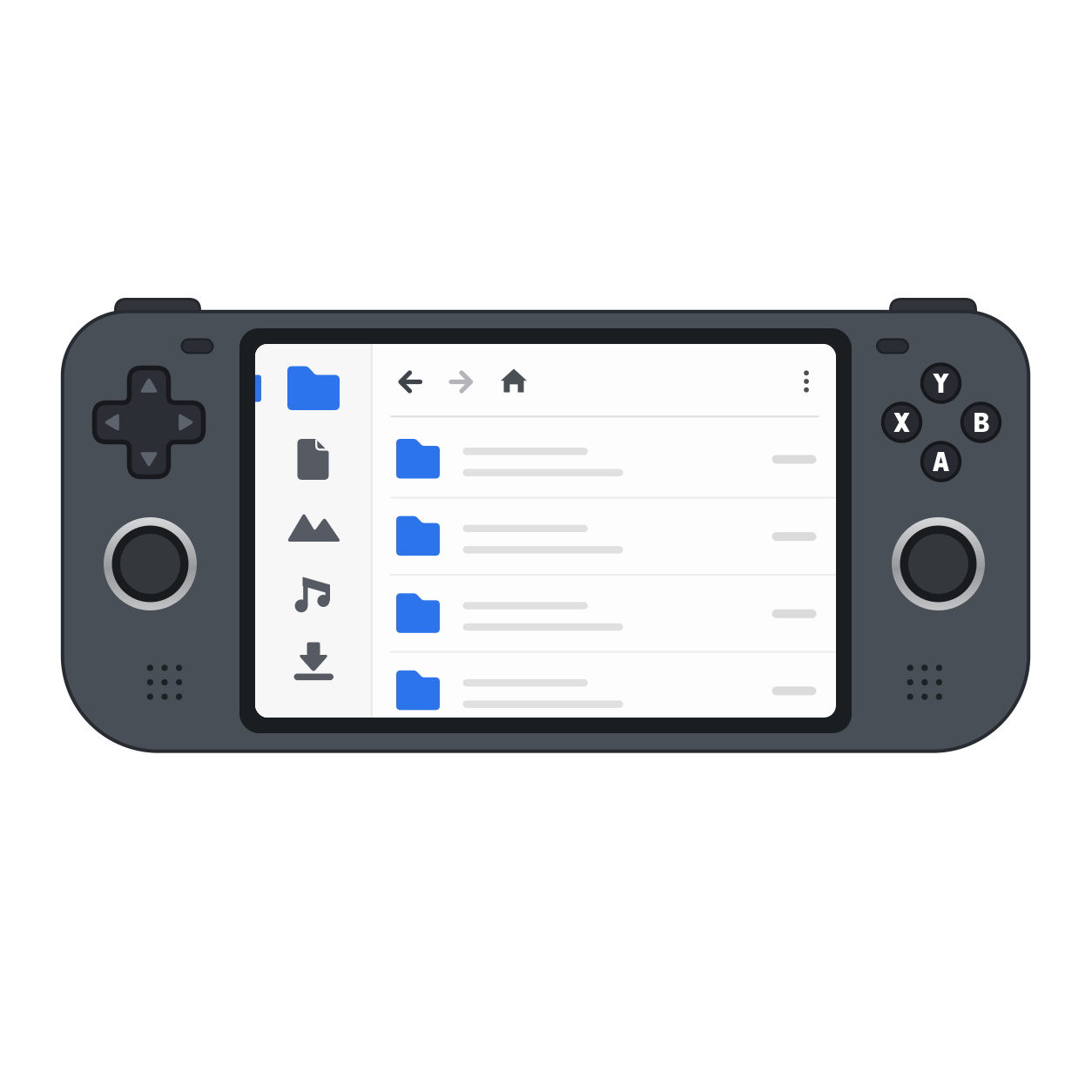
Section titled “The interface at a glance”- Sidebar (left) — shortcuts to Places (Home, Downloads, Documents, …), your Bookmarks, mounted Devices, and network shares. An optional Recent entry can sit at the top.
- Tabs (top) — up to four independent tabs, each with its own folder, selection, and sort.
- Breadcrumb — the current path; click any segment to jump there.
- File list (center) — the folder’s contents. The focused pane glows; the selection auto-scrolls into view.
- Preview pane (right) — opens when you preview a file; shows text or images. The embedded terminal shares this slot.
- Status bar (bottom) — item count, selection count, active sort, clipboard, free space, and the git branch when you’re in a repository.
Moving around
Section titled “Moving around”| You want to… | Keyboard | Controller |
|---|---|---|
| Move the selection | Arrow keys | D-pad / left stick |
| Switch pane (sidebar ↔ files ↔ preview) | ← / → | Left / Right |
| Open / enter a folder | Enter | A |
| Go back (parent) | Backspace | B |
| Switch tab | Ctrl+Tab | LB / RB |
| Open the command menu | ⚡ toolbar button | Start |
Left / Right cross between the sidebar, the file pane, and the preview pane. With the sidebar focused, Up/Down move through it, A opens the highlighted shortcut, and X ejects a highlighted device.
The command menu (Start)
Section titled “The command menu (Start)”Press Start (or the ⚡ toolbar button / right-click) to open the command menu — a searchable list of every action. It’s the way to reach things that don’t have a dedicated button on a controller: new folder, new file, properties, bookmark, delete permanently, and more.
Next steps
Section titled “Next steps”- Learn how tabs and selection work.
- Set up your bookmarks and network shares.
- Skim the gamepad guide and the full controls reference.