Installation
DeckCrate is available exclusively on Steam. Purchase it from the DeckCrate store page, and Steam handles the rest — installation, updates, and launching — on macOS, Linux, and Windows.
Install
Section titled “Install”- Open the DeckCrate store page and purchase the app.
- In the Steam client, find DeckCrate in your Library and click Install.
- Launch it from your Library — or add it to your desktop / Steam Deck for quick access.
Steam keeps DeckCrate up to date automatically, so you’ll always have the latest build without any manual steps.
Steam Deck
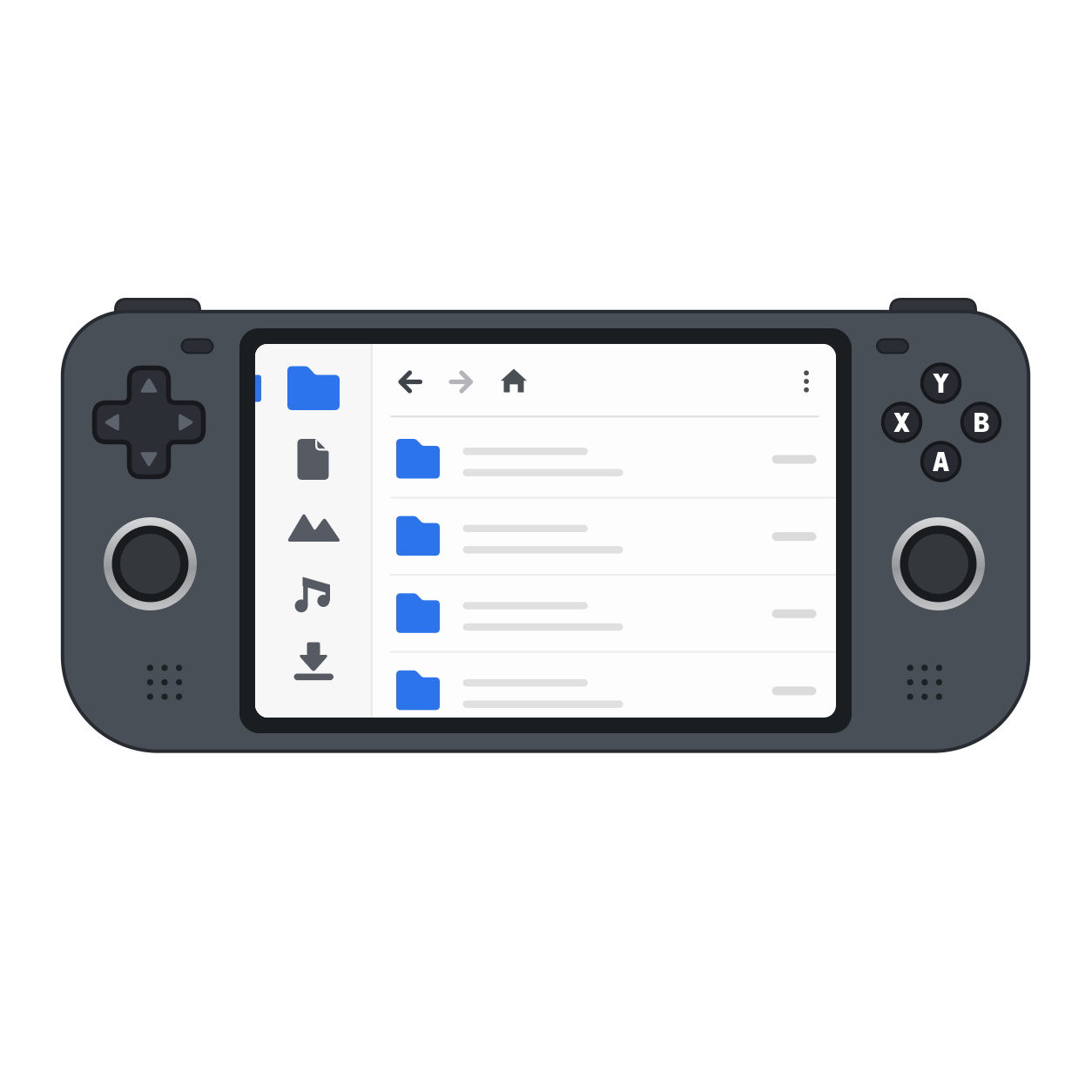
Section titled “Steam Deck”DeckCrate is right at home on the Steam Deck. Install it from your Library as usual and launch it straight from Gaming Mode — the Deck’s default Big Picture interface. There’s no need to drop into Desktop Mode: DeckCrate is fully drivable with the Deck’s built-in controls, so you get a real file manager right where you already are. It works in Desktop Mode too, if you prefer. See the Linux platform guide for controller notes.
Platform notes
Section titled “Platform notes”- macOS — Install and launch through Steam. macOS may prompt for access to Desktop / Documents / Downloads on first use; allow it so DeckCrate can browse those folders.
- Linux — Runs through the Steam client. Controllers work out of the box on SteamOS and other gaming handhelds; on a custom desktop Linux install, see the Linux platform guide if a controller isn’t detected.
- Windows — Install and launch through Steam. See the Windows platform guide for details and caveats.