Browsing & navigation
DeckCrate browses the real filesystem and opens in your home folder on launch.
Panes and focus
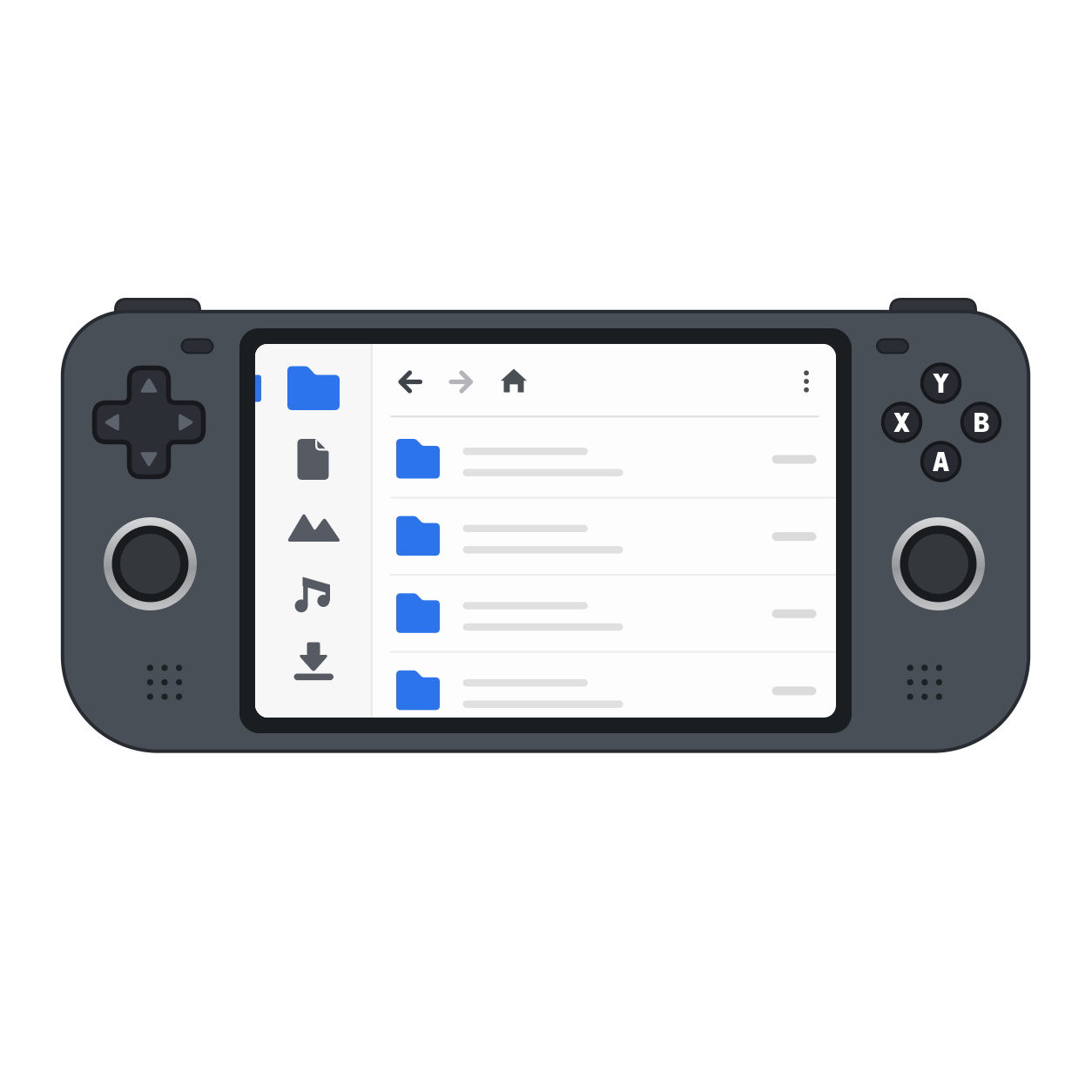
Section titled “Panes and focus”The window has up to three panes: the sidebar, the file list, and the preview (or terminal). Left / Right cross between them. The focused pane glows; when a pane is idle, its selection dims to grey so you always know where input will land.
Inside the file list, Up / Down (or the d-pad / left stick) move the selection, which auto-scrolls to stay in view. Enter / A opens a folder or previews a file; Backspace / B goes to the parent folder.
The breadcrumb
Section titled “The breadcrumb”The path bar above the file list shows where you are. Click any segment to jump straight to that folder. When a search is active, the breadcrumb shows the query instead and reverts when you navigate away.
The size column
Section titled “The size column”Each row shows a size next to its name and modified date. For files this is
the byte size; for folders it’s the number of items directly inside —
12 items, or 1 item. This is a shallow count of the folder’s immediate
children only, not a recursive total (for a full recursive breakdown, open
Properties).
Counts are gathered just after the listing appears, so on a large or slow folder
a row may briefly show — before its count fills in. A folder that can’t be read
keeps the —.
Hidden files
Section titled “Hidden files”Toggle hidden files with Ctrl+H (controller RT + Y). The setting applies
to the current view — including the folder item counts above, which are
recomputed to match. A folder holding only hidden files reads 0 items with
hidden off and its real count once hidden is shown.
Refresh
Section titled “Refresh”DeckCrate refreshes the list automatically (see below), but you can force a refresh with F5 / Ctrl+R (controller L3).
Live updates
Section titled “Live updates”The open folder reflects changes made by other apps or other tabs — files added, removed, or renamed — without a manual refresh. This is best-effort on network shares.
If a folder you’re viewing is deleted, renamed, or unplugged while it’s open, the tab recovers to the nearest folder that still exists (up to Home) and shows a brief notice instead of erroring.
Folders first
Section titled “Folders first”Folders are always listed before files, regardless of the active sort.