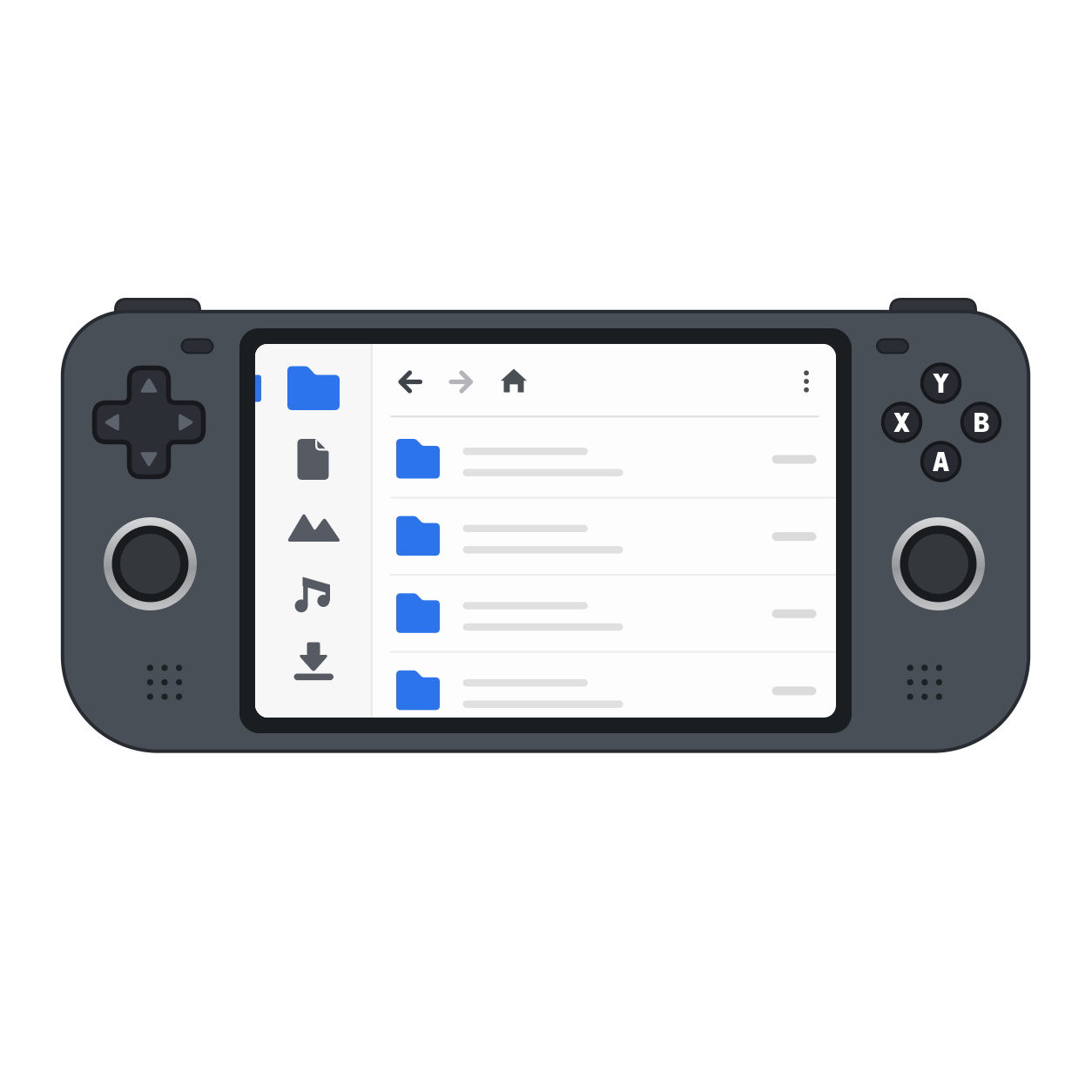
Tabs
Tabs sit above the breadcrumb. You get three by default, adjustable from one to four with the Number of tabs slider at the top of the Preferences tab in the Operations & Preferences manager. The strip grows and shrinks live and the count is remembered across launches.
Switching tabs
Section titled “Switching tabs”- Keyboard: Ctrl+Tab / Ctrl+Shift+Tab
- Controller: LB / RB
The sidebar always acts on the active tab.
What each tab remembers
Section titled “What each tab remembers”Each tab keeps its own:
- current folder
- selection
- sort order
All of these are remembered across launches. A tab whose folder is gone (for example an unplugged drive) reopens on Home.
Shared clipboard
Section titled “Shared clipboard”Tabs share one clipboard, so you can copy in one tab and paste in another. The operations overlay shows progress from every tab at once.
Recovery
Section titled “Recovery”If the folder a tab is showing is deleted, renamed, or unplugged while open, the tab recovers to the nearest still-existing folder (up to Home) and shows a brief notice — it never errors out.